
Table of Contents
Signature Settings Guide #
- Open Outlook.
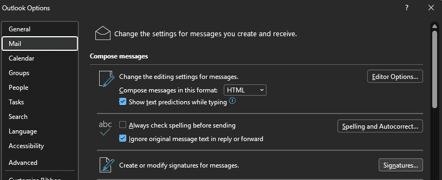
- Go to File > Options > Mail > Signatures.
- Create a new signature or edit an existing one.
- Customise the signature as required.
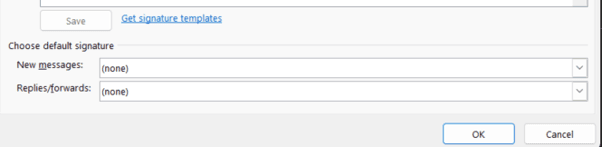
- Use the drop-down menus to select the signature for New messages and Replies/forwards.
- Select OK to save your changes.
 #
#
If you have access to multiple mailboxes #
- Open the Signatures window in Outlook using the steps above.
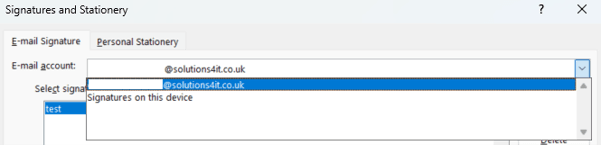
- Select the email account you would like to update.
- Create or select the correct signature for that mailbox.
- Apply it to New messages and Replies/forwards.
- Repeat these steps for each mailbox you need to update.
Set up your signature using Exclaimer #
- In the Windows search bar, type Exclaimer.
- Open the Exclaimer Cloud Signatures application.
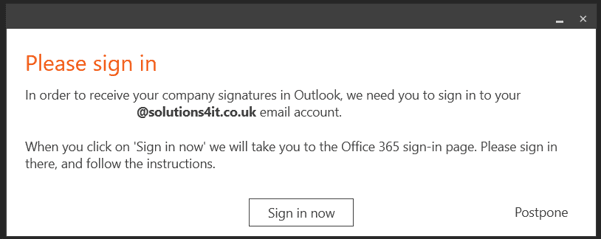
- Sign in when prompted.
- Once signed in, restart Outlook.
- Open a new email to confirm your signature appears correctly.
If you have any questions or run into any issues, please contact us at help@solutions4it.co.uk or call 01384 413434.