1. Create the GPO:
On the domain controller, open Group Policy Management → Group Policy
Objects. Create a new GPO named “Disable InPrivate Mode.”
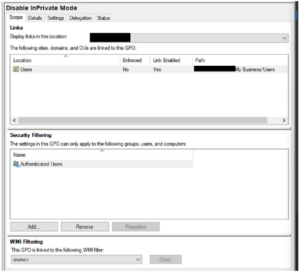
Under Scope, link it to the domain. Apply Security Filtering to all users (as
shown in the example) and exclude specific users who require private
browsing or target a specific domain group if preferred.
2. Configure Settings:
Leave the Details tab at its default.
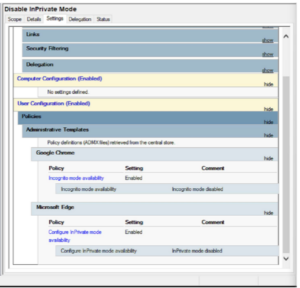
Under the Settings tab, disable private browsing for both Google Chrome
and Microsoft Edge via:
User Configuration → Policies → Administrative Templates → Google
Chrome / Microsoft Edge
3. Set Delegation:
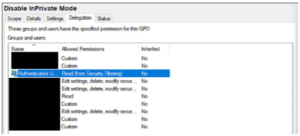
Configure the Delegation tab based on your policy requirements. In this
example, the policy applies to Authenticated Users, with specific
administrators or users excluded.
4. Verify and Apply:
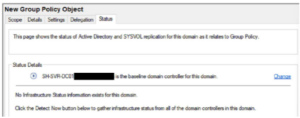
Under the Status tab, confirm the correct Domain Controller is listed and
that the GPO is enabled and active.
The policy will take effect at the next user sign-in