
If you receive a message saying that Outlook is full, the first thing to check is your mailbox size. This will help confirm whether the issue is with your mailbox or your local PST file.
Check your mailbox size
- Open Outlook.
- Select File in the top-left corner.
- Under Mailbox Settings, check how full your mailbox is.
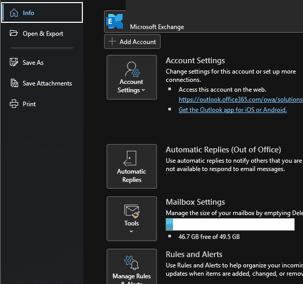
If your mailbox is not full, the issue is most likely caused by your PST file reaching its size limit.
Check the PST file size
- In Outlook, select File.
- Select Account Settings, then select Account Settings again.
- Go to the Data Files tab.
- Select the affected data file, then choose Open File Location.
If the PST file is around 49,000,000 KB, it is likely full and will need to be reduced in size.
Reduce the PST file size
- Go back to File > Account Settings > Account Settings.
- Select the Data Files tab.
- Double-click the affected email account or data file.
- Select the Advanced tab.
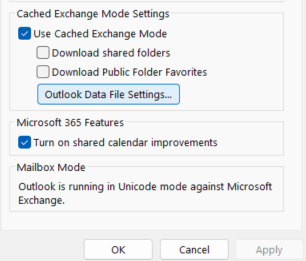
- Untick Download shared folders.
- Select Apply, then OK.
- Restart Outlook.
Compact the Outlook data file
- Return to the same location: File > Account Settings > Account Settings.
- Go to the Data Files tab.
- Double-click the relevant data file.
- Select Advanced.
- Select Outlook Data File Settings.
- Select Compact Now.
Leave this running for a few minutes. The PST file size should begin to decrease once the compacting process has completed.
Confirm the issue is resolved

Once the compacting process has finished, go back to the Data Files tab and select Open File Location again. Check that the PST file size has decreased.
If you have any questions or run into any issues, please contact us at help@solutions4it.co.uk or call 01384 413434.